Preface
In 2006 I decided to create this web page in order to help people tunnel traffic via SSH under Windows. There were a lot of resources out there showing how to do this, but I found many to be too UNIX-centric to be usable under Windows, or inaccurate, or unclear. So, I made my own page regarding the subject.
If you follow this tutorial, you will learn to tunnel most port-specific applications via SSH. Not everything is easily tunnelable via SSH (e.g., SMB), as noted later in this document.
For the purposes of this tutorial, the term "server" refers to the system running CopSSH, and is the system offerring the service to be used by other systems. The other systems that access the server are referred to as "clients." My documentation is going to assume you are using PuTTY and CopSSH. If you are using other applications, you will need to use different syntax, but the information should be the same.
Install SSH
The first decision you need to make regarding tunneling is which secure shell (SSH) product to use. There are many to choose from, and I only recommend one, but feel free to experiment with any and all. It should be noted that OpenSSH is UNIX only, but most SSH ports seem to use their code.
- copSSH is an SSH implementation that uses Cygwin's SSH code, but configures everything for you. It works well, is regularly maintained, includes SCP built-in, and is simple to use. This is SSH implmentation I recommend for most people. It takes up only 18MB of space. To me, the biggest downside to CopSSH is that you have to rely on the developer to update his binaries with the newest version of SSH, so there is often a delay in getting what is current.
- Cygwin has a nice SSH implementation, but it is more difficlut to download and configure than CopSSH. Here and here are great links to get you set up.
- OpenSSH for Windows is now the official Microsoft solution. I recommend using it and not copSSH.
Download and install the newest version of copSSH on the server. By default, CopSSH does not configure any users to be able to use SSH, so you need to "Activate a user" via the Start menu icon.
Application settings (e.g., port number, encryption ciphers, etc.) are found in etc/sshd_config. For ease of documentation, I am going to assume you use the default port of 22, but again, you can use any port you want.
Firewall configuration
Firewalls are a great way of limiting network access to your system, and everyone should use one. Windows versions XP and higher come with Windows Firewall. Obviously, the system running CopSSH needs to accept incoming traffic, so you will need to exclude TCP port 22. There is no need open any additional port for tunneling; TCP port 22 is all you need. This means that you do NOT need to open up port 80 if tunneling HTTP, port 139 if tunneling NetBT, or port 23 if tunneling telnet, etc.
Create the Tunnel
Prepatory to configuring PuTTY, you need to download PuTTY. Only clients need PuTTY.
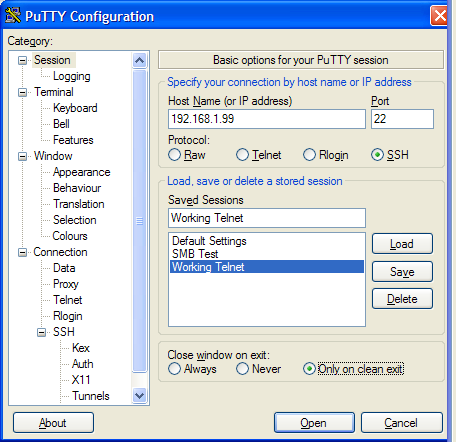
- Open PuTTY, which opens the Session screen. Type in the host name, verify port 22 and SSH.
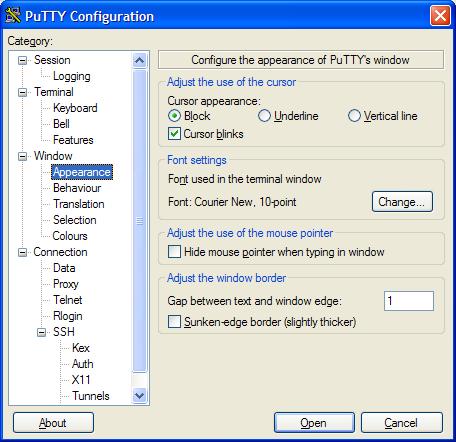
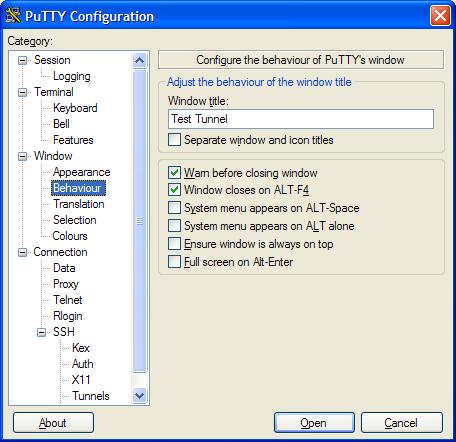
- Configure Window, Appearance, and Behavior.

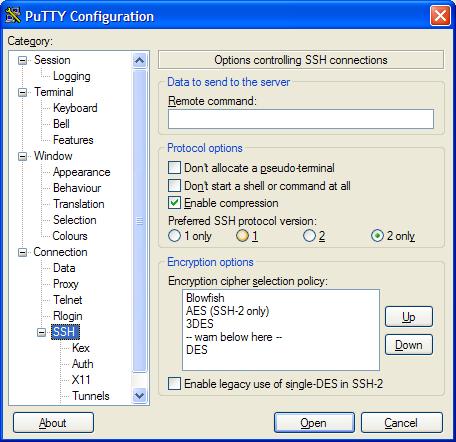
- Under SSH settings, I like to enforce SSH-2 and use Blowfish.
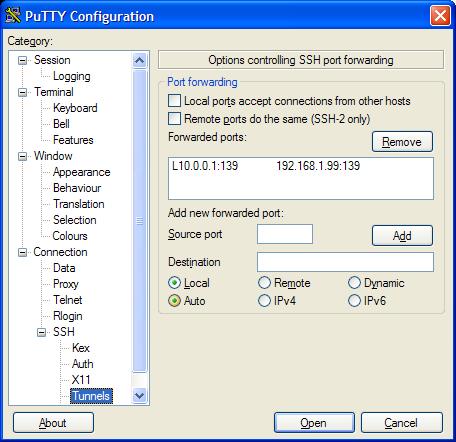
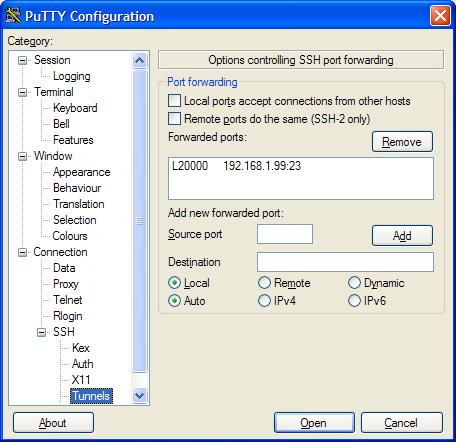
- Tunnel Configuration: Under Source port, type an unused port on the client. Under Destination, type the IP of the server, a colon, and the application port (e.g., 192.168.1.99:23). Click Add.
Tunneling SMB (really NetBT) over SSH
By default, Windows uses port 445 for SMB. However, for backwards compatibility, it resorts to NetBT on port 139. To get around port conflicts on 127.0.0.1, we install a dummy loopback NIC. Documented by Microsoft here.
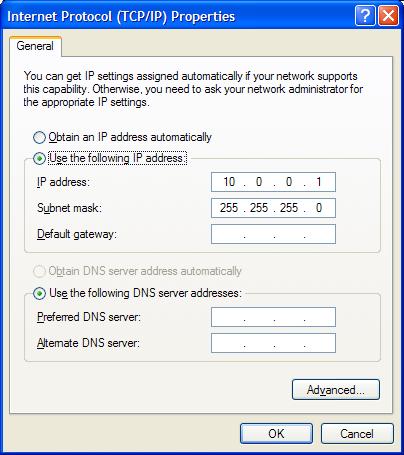
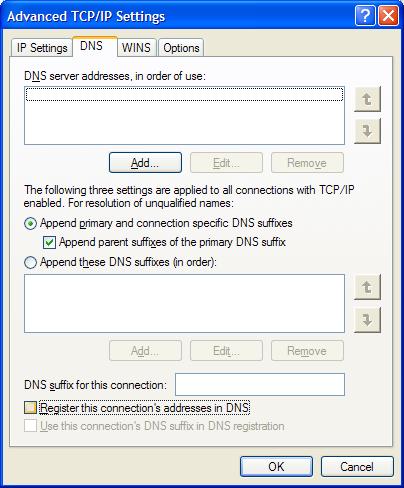
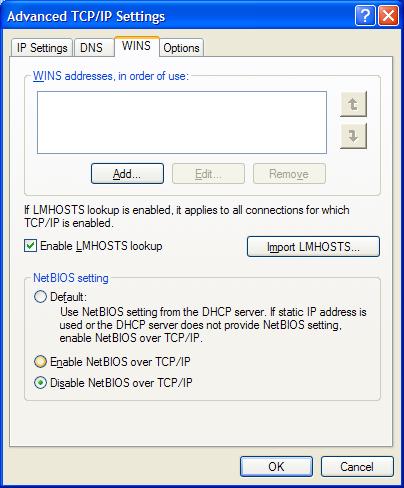
Configure the loopback NIC with IP 10.0.0.1, subnet 255.255.255.0. Disable NetBIOS over TCP/IP on this loopback adapter. 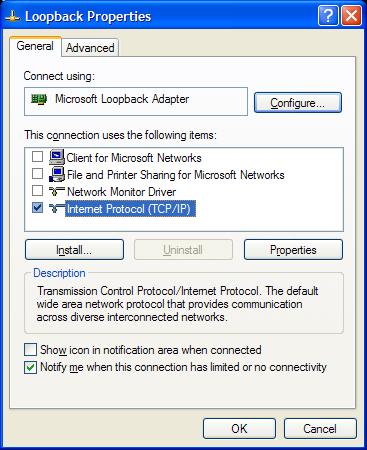
In PuTTY tunnel configuration, enter 10.0.0.1:139 as the Source, and the Destination of your SSH server:139.